Upload an image
Choose or drop a JPG, PNG, or WebP file up to 15 MB. Processing stays on your device.
Turn an image to pixel art in your browser, control the crop, pixel width, colors, dithering, and grid, then download a crisp PNG.
Drop a JPG, PNG, or WebP up to 15 MB. Conversion happens locally in your browser.
Pixel art basics
A photo to pixel art converter rebuilds an illustration, avatar, or permitted design on a deliberately small pixel grid. Instead of placing a blocky filter over a full-size picture, CraftGrid resizes the selected crop to measurable pixel dimensions, creates a limited palette from the source, and assigns every cell to one of those colors. The result is a compact image with intentional edges and a known color count.
This turn image into pixel art workflow is useful when you already have an image and want a simplified static PNG. It does not create artwork from a text prompt, animate a sprite, or provide a manual pixel editor. The preview and download use the same processed pixel data, so the exported image matches the size, palette, dithering, and grid choice you reviewed on screen.
Four quick steps
Start with the defaults, inspect the first preview, and change one setting at a time. This makes it easier to see which adjustment improves the image.
Choose or drop a JPG, PNG, or WebP file up to 15 MB. Processing stays on your device.
Keep the important subject and remove unused background so the available pixels describe what matters.
Set pixel width and color count, then choose whether dithering or visible grid lines improve the result.
Check the final dimensions and palette size, then download the same image to pixel art result shown in the preview.
Practical tricks
Use these image to pixel art adjustments before trying random combinations. Each targets a common preview problem.
Fill the frame with the subject before changing settings. A tighter crop gives every available pixel more useful visual information.
If eyes, text, or outlines disappear, increase pixel width first. Add colors only when distinct regions still merge together.
Turn dithering off and reduce the palette when colors look noisy. This creates larger, cleaner, more connected pixel areas.
Keep dithering off for logos and existing pixel art. Use it selectively for photographs with gradients or soft shadows.
Real conversion
This image to pixel art example compares a source with its simplified result.
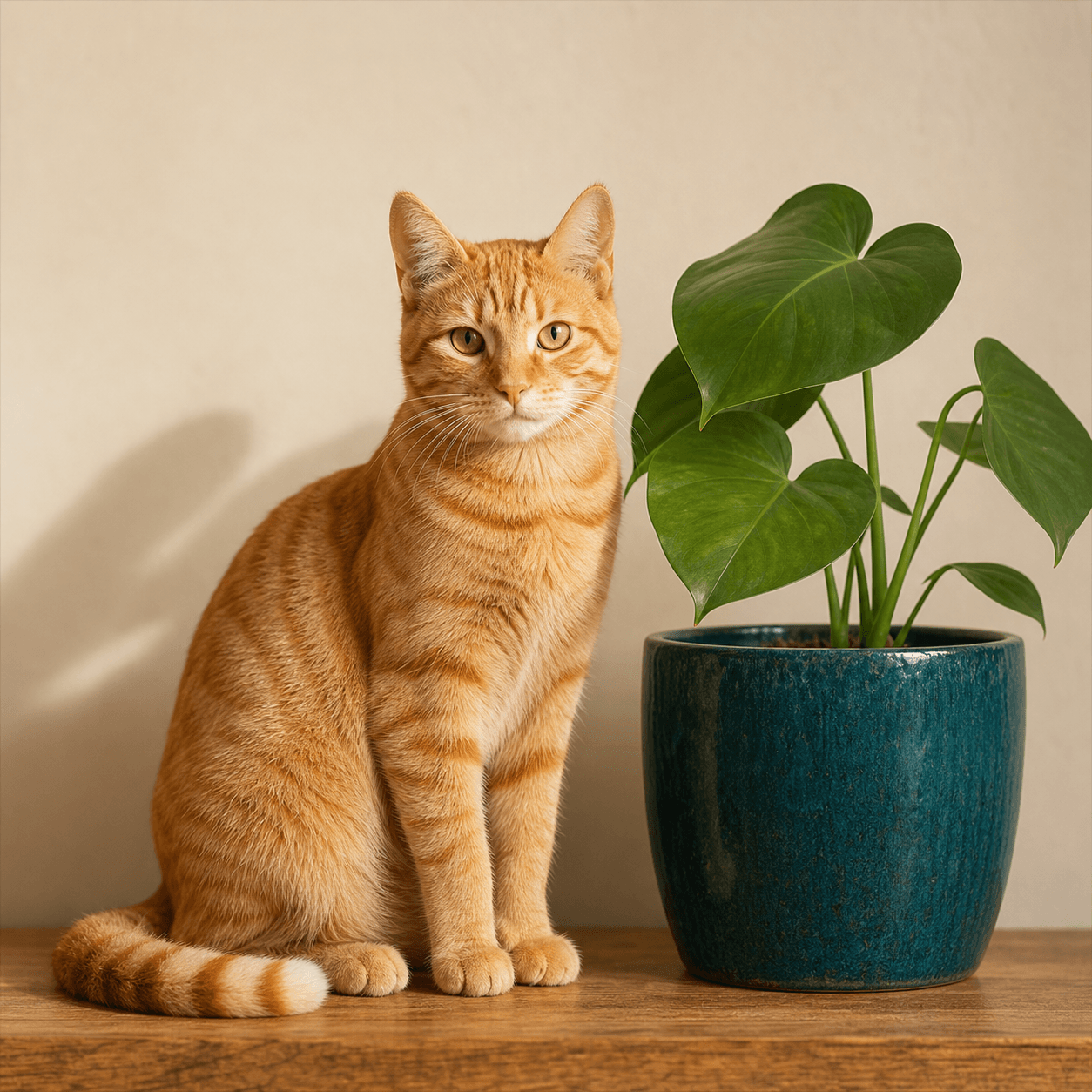
Source photo
Fine textures and subtle color changes test the converter.
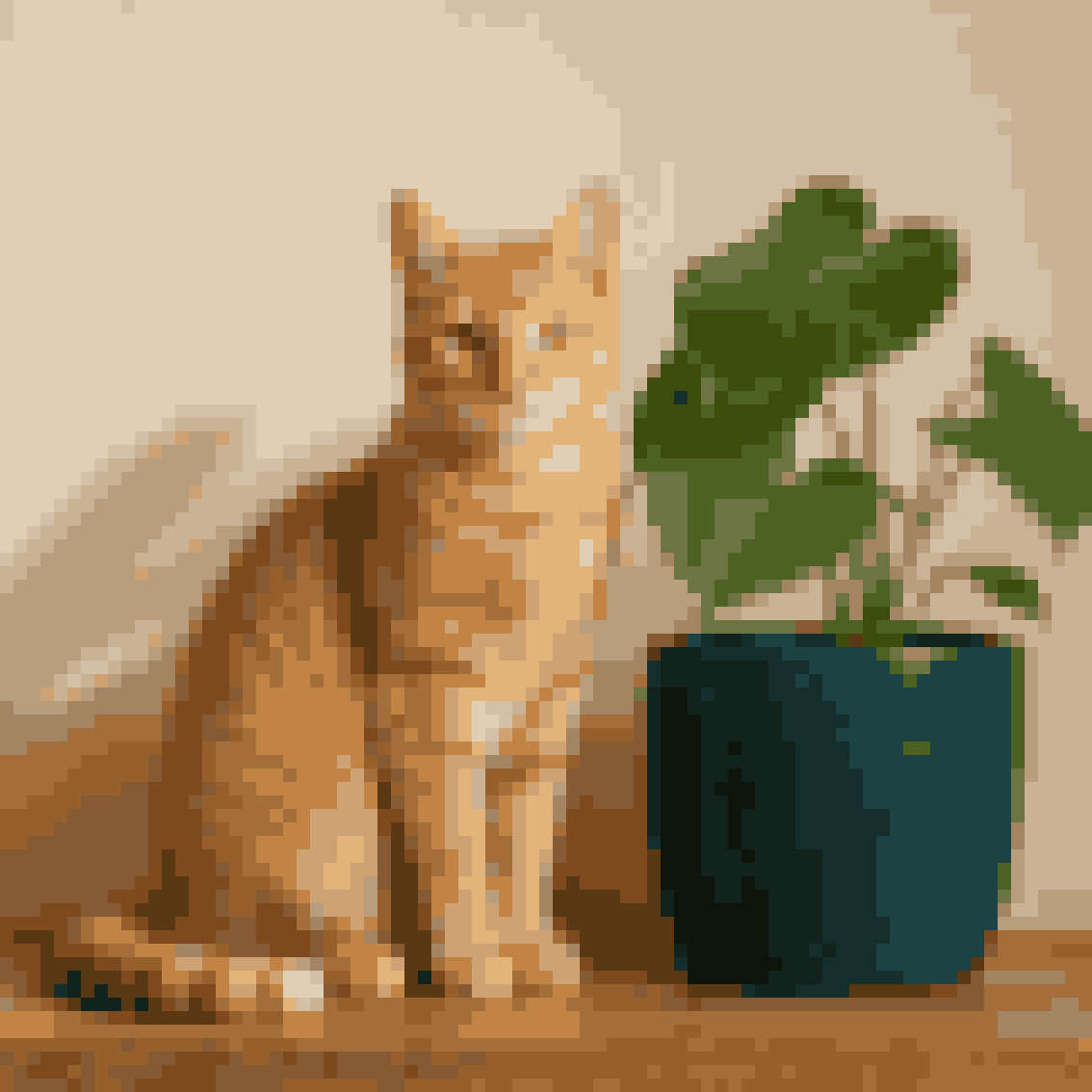
Pixel art result
Square colors retain the cat, planter, leaves, and lighting.
Converter features
The converter keeps the essential controls visible while the processing and export details remain consistent behind the scenes.
Your source image is decoded, converted, previewed, and exported locally without being uploaded to CraftGrid.
The palette comes from the current crop, helping the image to pixel art output retain recognizable source colors.
Width is adjustable from 8 to 150 pixels while height follows the proportions of the selected crop.
The downloaded PNG uses the same color indexes, dimensions, and optional grid setting as the visible preview.
Settings explained
There is no single correct setting for every picture. The useful combination depends on the subject, the amount of fine detail, and whether you want a bold retro image or smoother photographic shading.
Start around 40–60 pixels for a portrait, pet, or medium illustration. Lower values emphasize large shapes and produce a bolder retro style. Higher values retain eyes, thin borders, lettering, and texture, but can make the conversion look less deliberately simplified. Height follows the crop proportions and never exceeds the supported limit.
Try 12–16 colors first. Reduce the maximum when the result feels noisy or contains many nearly identical shades. Increase it gradually if important areas merge together. The setting is a ceiling rather than a promise, so a simple source may use fewer colors than the maximum selected.
Floyd–Steinberg dithering distributes color error into nearby cells. It can preserve the impression of sky, skin, fabric, or shadow with a small palette. Leave it off for logos, icons, existing pixel graphics, and flat illustrations where alternating pixels would weaken clean connected edges.
A grid makes cell boundaries easier to inspect, especially at larger dimensions. It does not change palette selection or underlying color indexes. The PNG follows the current grid choice, while switching the grid in the preview does not rerun the full color conversion.
Privacy and limits
CraftGrid processes the file in this browser and does not receive the source image. The latest home project can be stored on this device for recovery and cleared from the tool. If local storage is unavailable, conversion and downloading still work.
This image to pixel art converter creates a static PNG and composites transparent areas onto white. It does not preserve alpha, generate prompt-based art, animate sprites, or provide layer editing; those workflows remain outside this focused converter.
More tools
Need physical material planning instead of only a PNG? The Fuse Bead Pattern Maker adds community reference bead palettes, a cell-by-cell grid, exact color quantities, and a downloadable CSV material list.
Open the Fuse Bead Pattern MakerOpen the Minecraft Image ConverterOpen the Cross Stitch Pattern MakerYes. The converter is free to use, requires no account, and lets you download the PNG after adjusting the crop and settings. There is no watermark added to the generated image.
No. Image decoding, palette selection, preview generation, recent-project storage, and PNG creation happen locally in your browser. The source file is not sent to CraftGrid or included in analytics events.
Start around 40–60 pixels wide for a medium subject. Use a lower width for bold shapes or a higher width when faces, lettering, and thin outlines need more cells. Very high values may preserve detail without producing a strongly pixelated style.
A limit of 12–16 colors is a balanced starting point. Reduce it for flatter graphics and simpler palettes, or increase it when distinct areas merge and meaningful shading disappears. The final result may use fewer colors than the chosen maximum.
Use dithering for photographs and gradual shading when a small palette creates visible bands. Keep it off for logos, icons, flat illustrations, and existing pixel graphics that benefit from clean connected color blocks.
Yes. Open the separate Fuse Bead Pattern Maker when you need reference bead colors, exact quantities, a construction grid, and a CSV material list. The tools currently keep separate projects, so select the image again on that page.